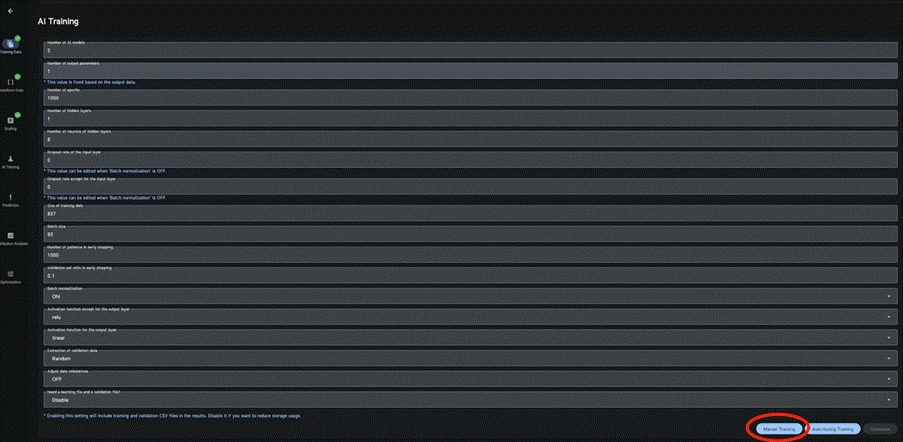
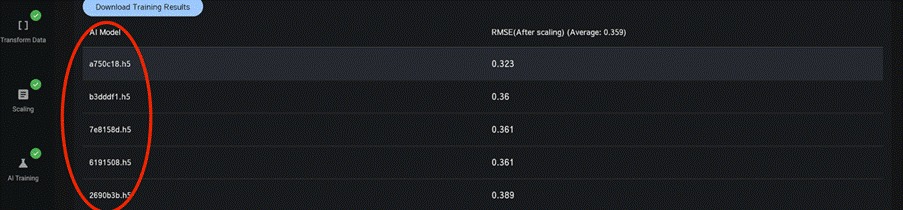
For a quick analysis, please click on Manual Training at the bottom of the screen, keeping the default or specified settings. After AI learning is completed, the trained AI model name will be displayed at the bottom of the screen (this may take a few minutes).
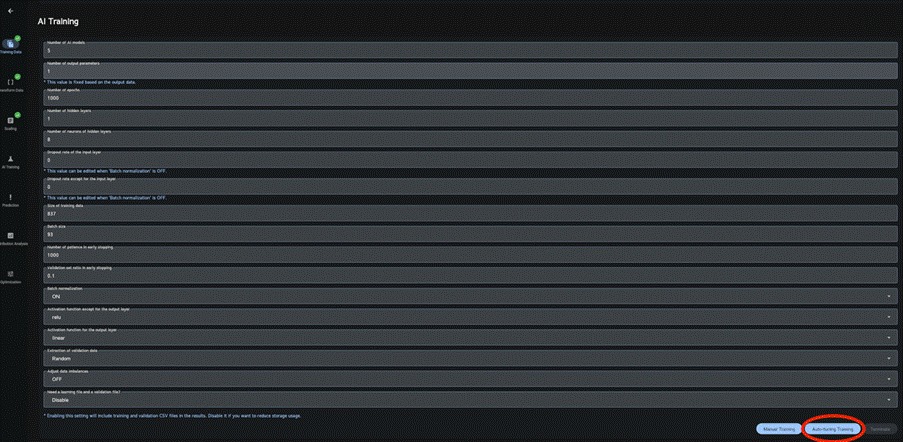
If you want to perform a more accurate analysis, please click on Auto-tuning Training. This option will automatically search for optimal AI training conditions to achieve high predictive performance, and it may take several hours to half a day. The process will continue even if you close the app or shut down your PC.
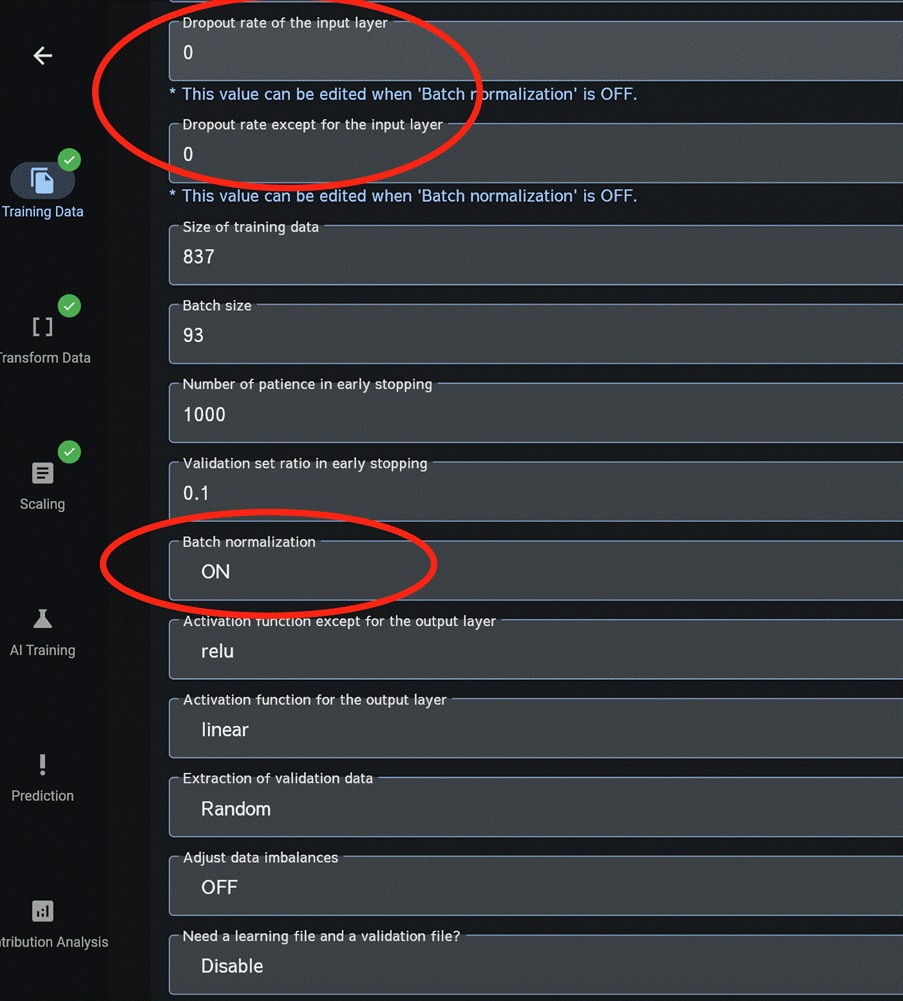
Note 1: Dropout and Batch Normalization cannot be used together. Auto-Tuning uses Batch Normalization.
Additionally, when you select a model you created, the model, model information, and the training/validation data are available for download.
On the Model Information screen, click Download Models and Data. The files will be downloaded as a compressed archive.
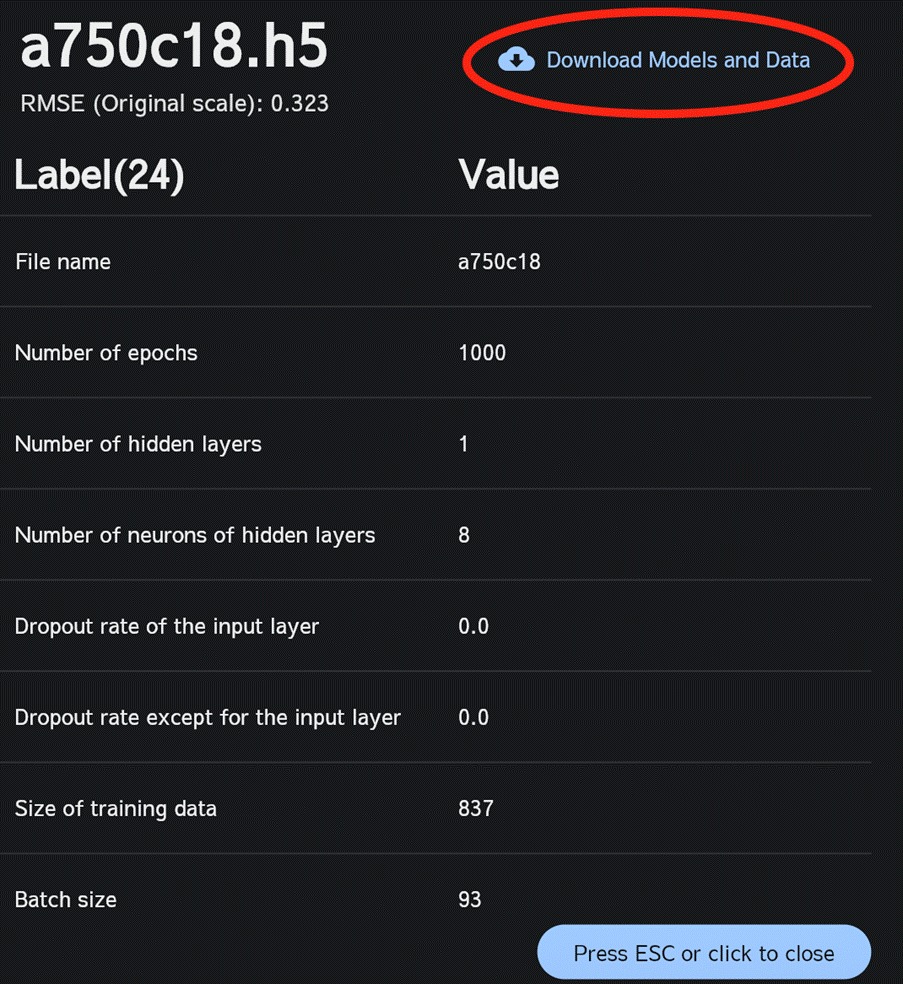
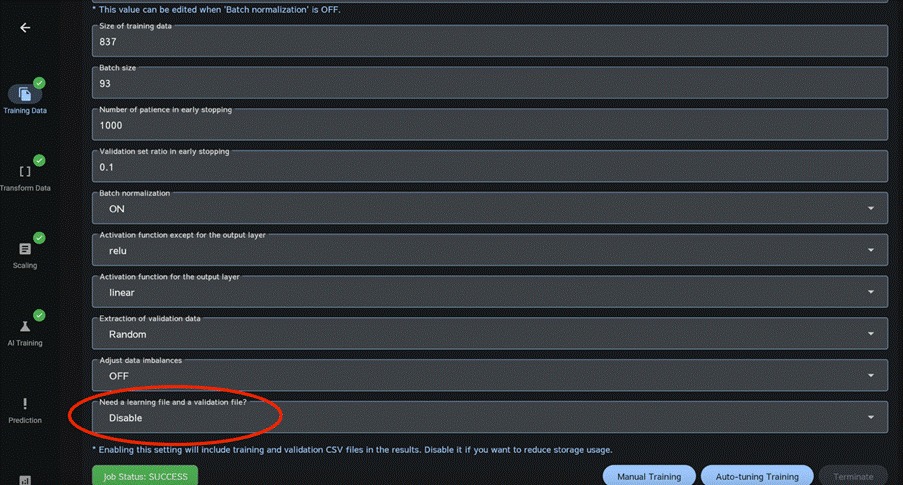
Note 2: The training/validation data will be saved to files and become downloadable only when Need a learning file and a validation file? is turned Enable. To reduce storage usage, leave this setting Disable.