16.1. Creating a Project #
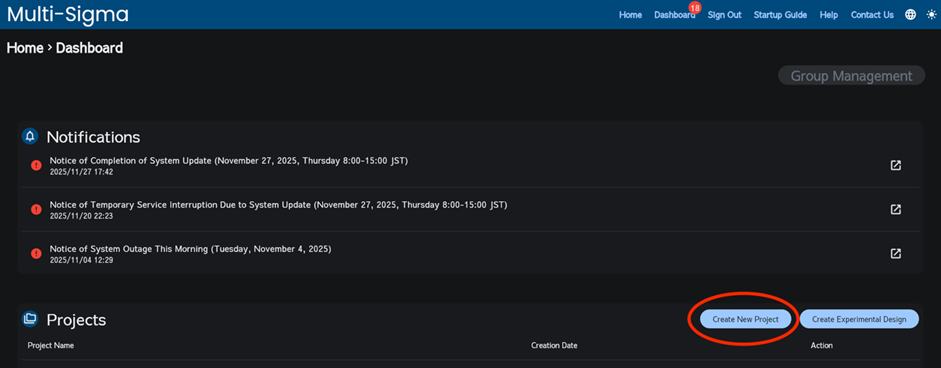
To create a project, click “Create New Project” on the dashboard screen.
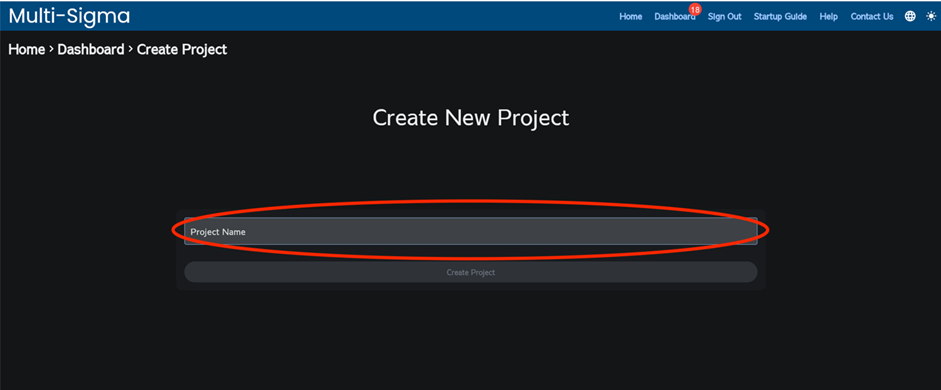
Please enter the project name and click “Create Project”.
On the dashboard, click on the name of the project you created to navigate to the next screen.
16.2. Creating a Task and Setting Input/Output Parameters #
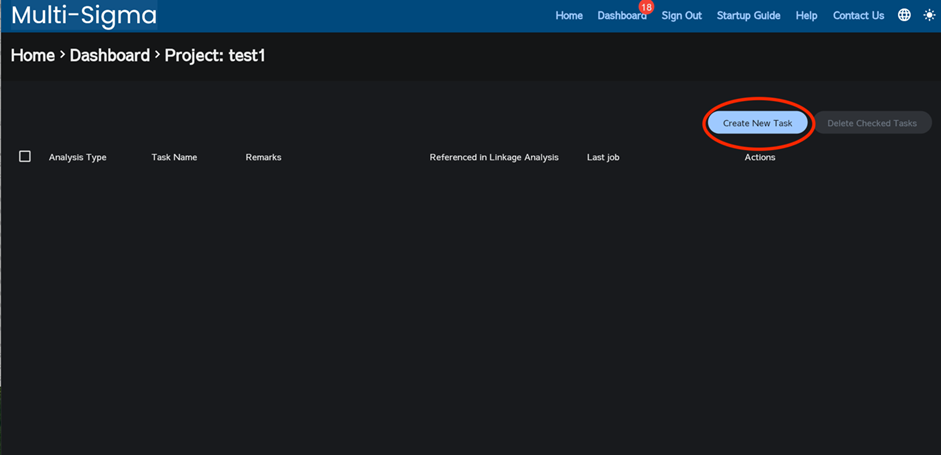
After clicking the created project, click “Create New Task”. On the task creation dialog box, select “Linkage Analysis” and enter the task name.
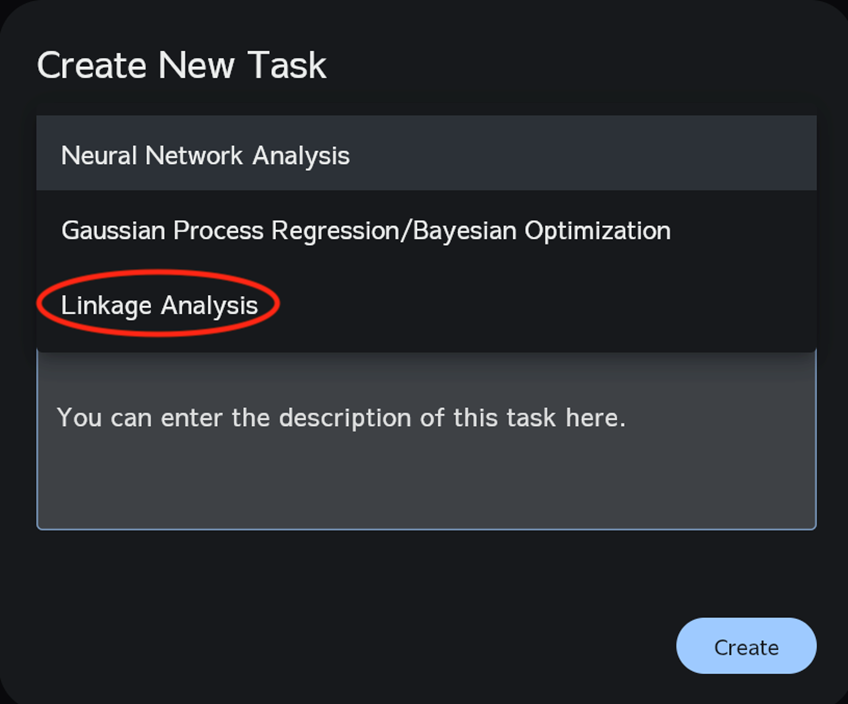
Click the task name you created to navigate to the next screen.
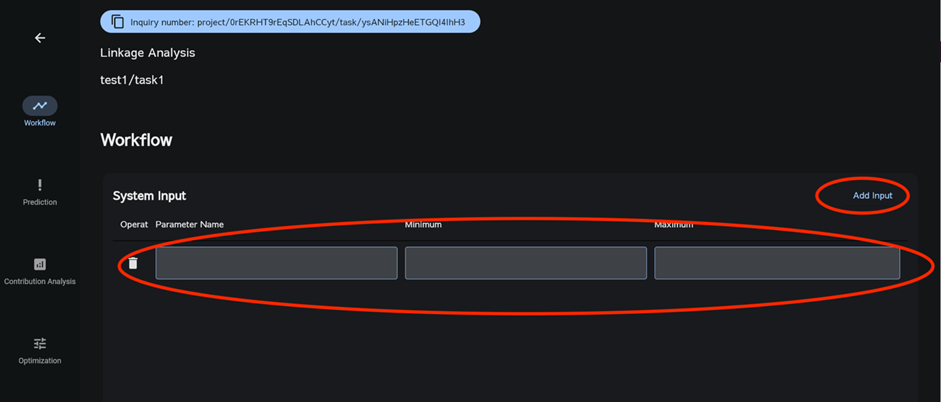
Set the input and output parameters for the linkage analysis.
Configure the input parameters and specify the minimum and maximum values.
If there are multiple input parameters, click “Add Input”.
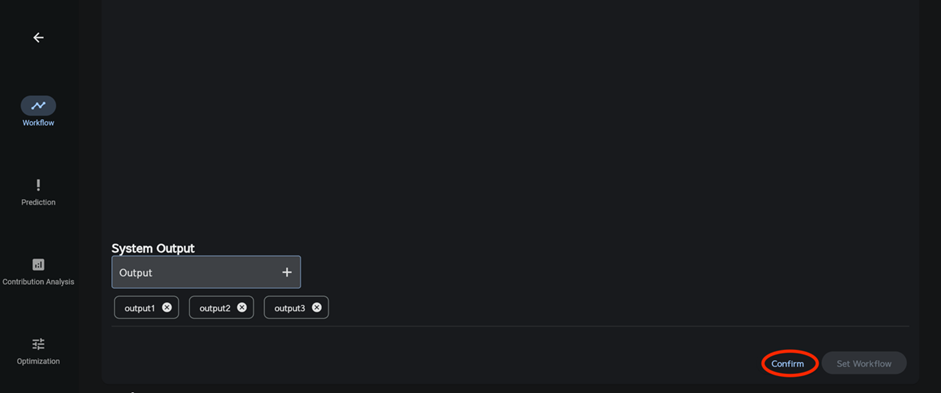
Please set the output parameters.
After entering the output parameter name, click “+” to add the output parameter.
Once all parameters have been set, click “Confirm”.
Then click “Set Workflow”.
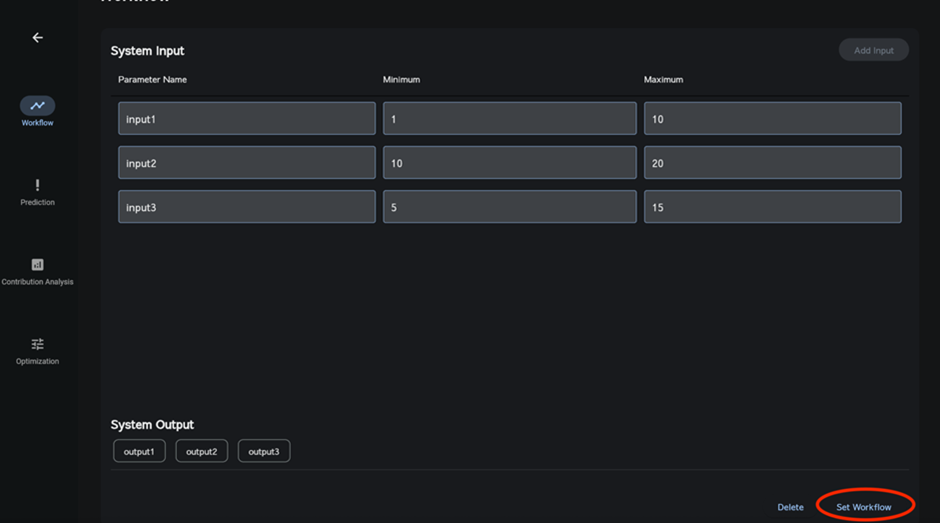
The overall system inputs and outputs configured above are displayed on the workflow screen shown below.
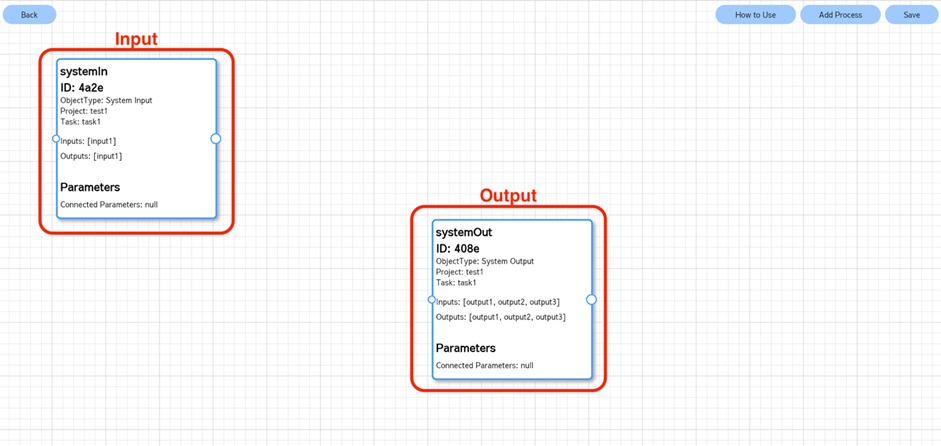
Input: These are the input parameters for the entire system.
Output: These are the output parameters for the entire system.
16.3. Creating a Workflow Diagram #
To perform linkage analysis, create a workflow diagram.
Connect the input/output parameters and the various tasks.
Click “Add Process”.
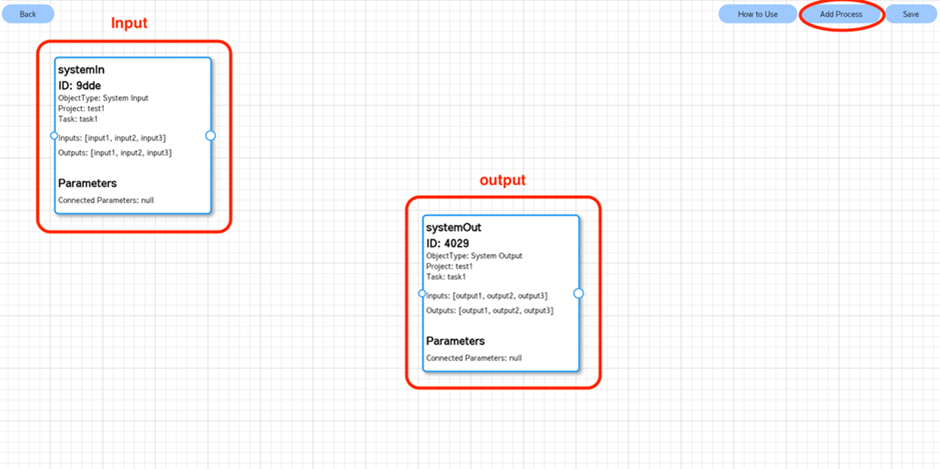
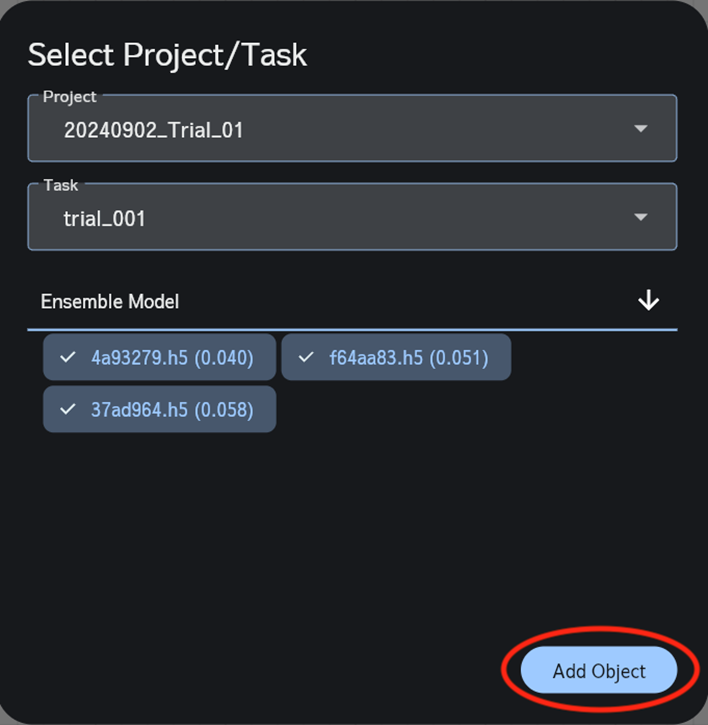
Please select the project and task to add to the workflow.
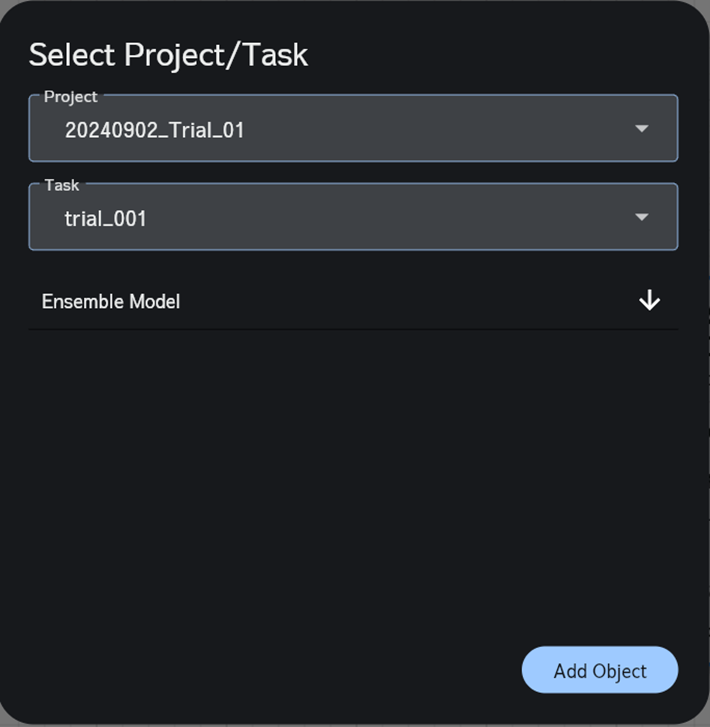
Next, from the drop-down list select the appropriate number of AI models from your neural network task to build an ensemble model. And click “Select” to confirm.
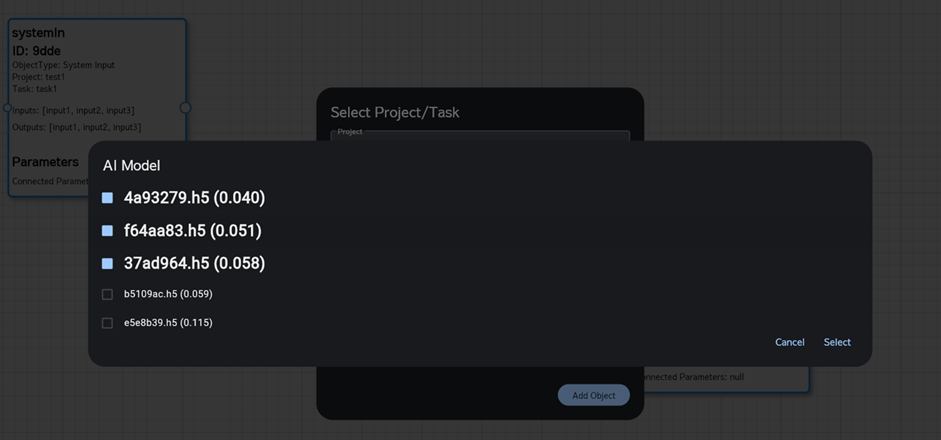
Click “Add Object”. The task will be added to the workflow diagram.
Please note that if you select a Gaussian Process Regression / Bayesian Optimization task, the option to build an ensemble model will not be displayed.
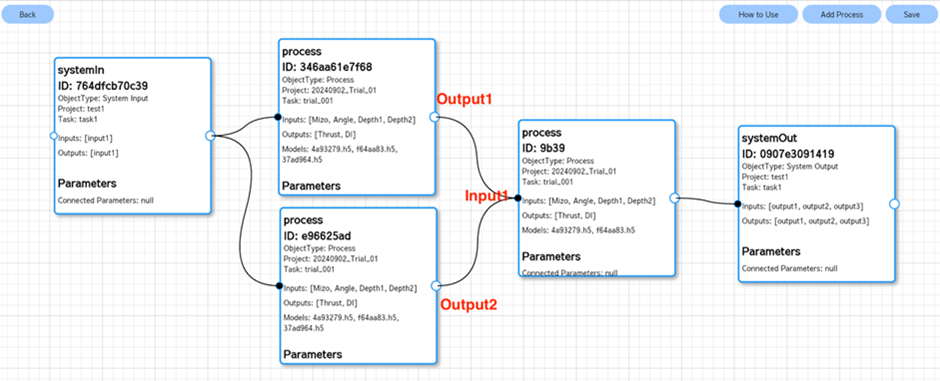
Connect the processes and tasks:
You can draw a connection line by dragging from the circular node (○) on a process or task. Drag to the destination and release to finalize the connection.
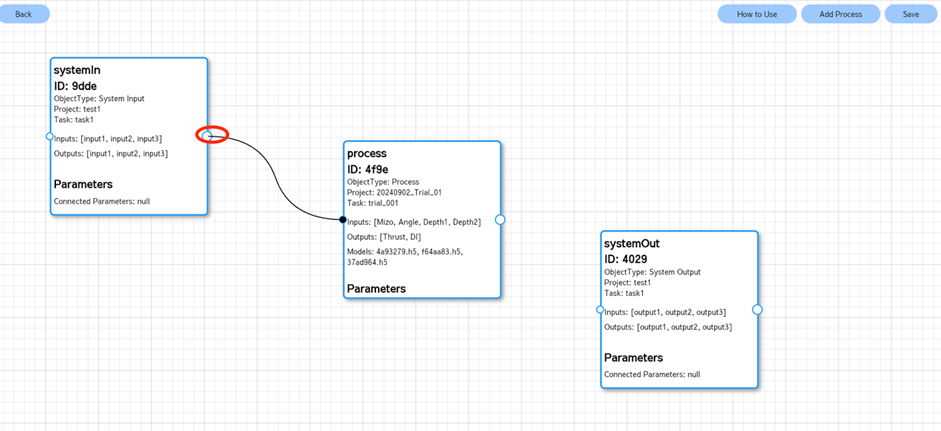
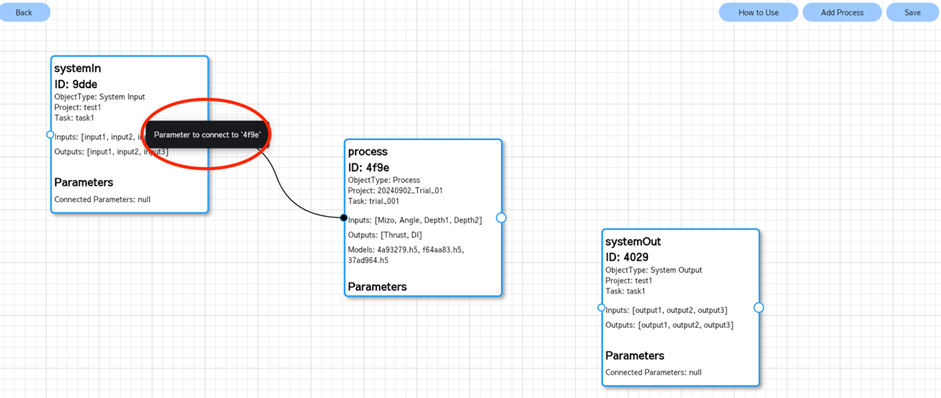
Click the circular node (○) on a process or task again with the left mouse button to select the parameters to connect.
Click “Parameters to connect to (connection ID) ”. The connection ID refers to the task you wish to connect in the workflow.
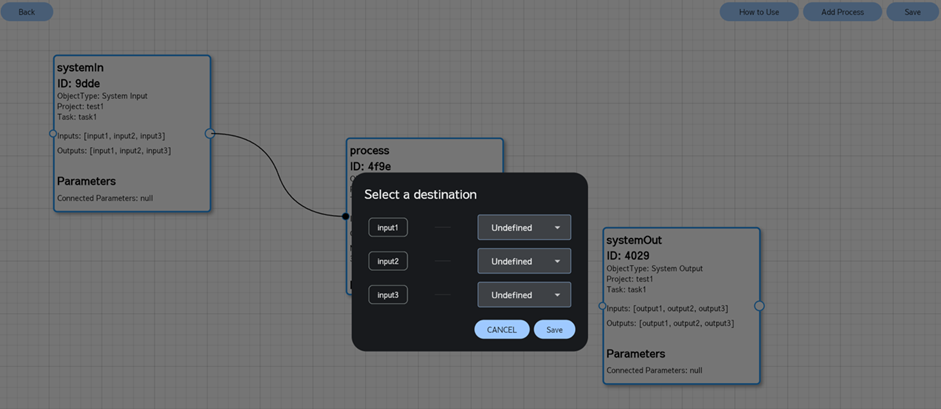
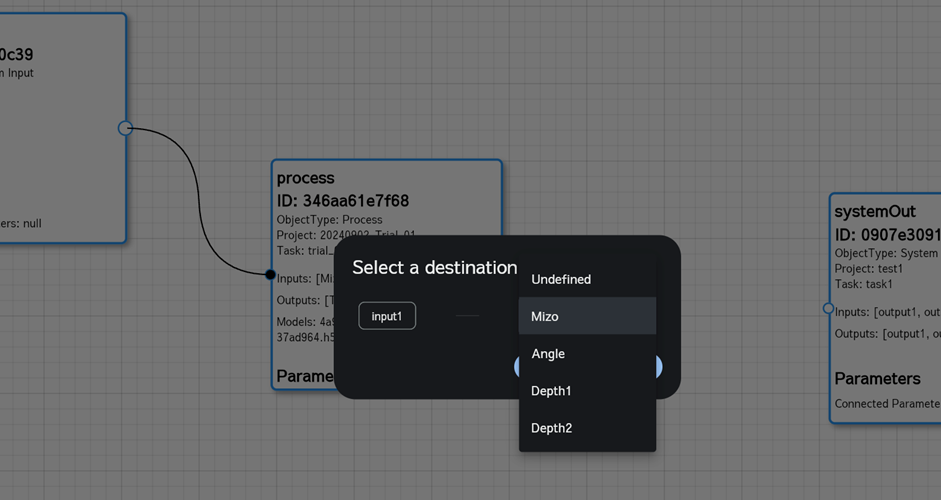
In the “select a destination” dialog box, manually select the input parameters to be fed to the destination task.
Once you’re done, click “Save”.
The connection will be completed.
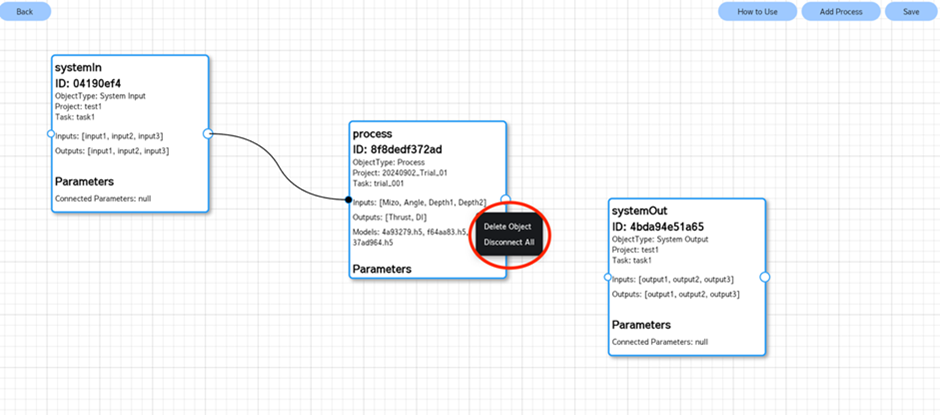
Editing the workflow diagram:
By left-clicking a process object, you can delete the object and disconnect all its connections.
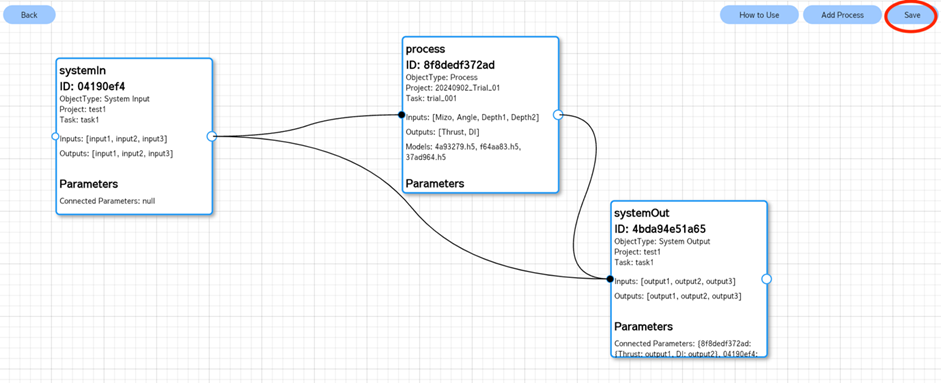
Once all connections are complete, click “Save”.
The workflow diagram will be saved.
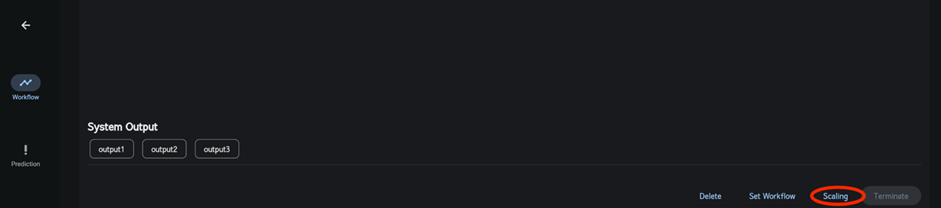
With this, the linkage analysis workflow is complete.
From this point onward, the procedures for AI prediction, contribution analysis, and optimization are the same as those for neural network analysis, so please refer to the previous section.
Notes on connections
• Simply drawing connections between processes is not sufficient to perform analysis. You must be sure to configure the parameters to be connected.
• All input parameters must be connected.
Example: If a task has four inputs (Mizo, Angle, Depth1, Depth2), all of these inputs must be connected. In the example shown, only “Input 1” is connected to “Mizo” in the destination task, which will result in a connection error.
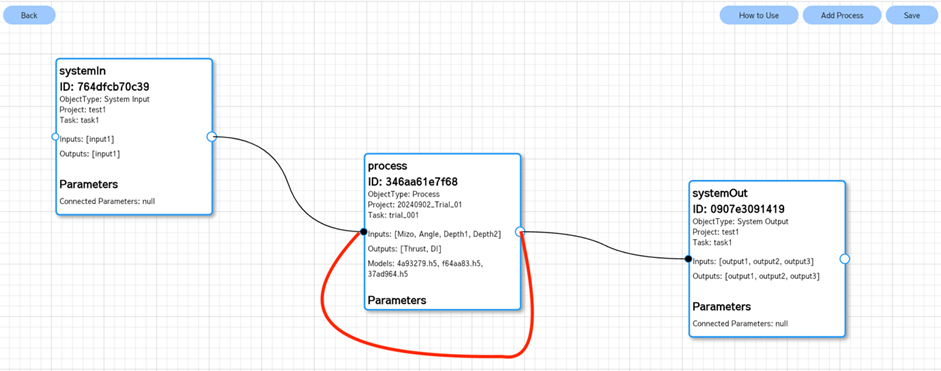
• Loop connections to the same task itself are not allowed.
• Multiple output connections cannot be made to the same input parameter, however multiple output connections can be made to different input parameters of the destination task.